
Bulk Template Creation & Import/Export
Create WhatsApp templates in Excel, move them between accounts with JSON, and preview, rename and select exactly what to import.
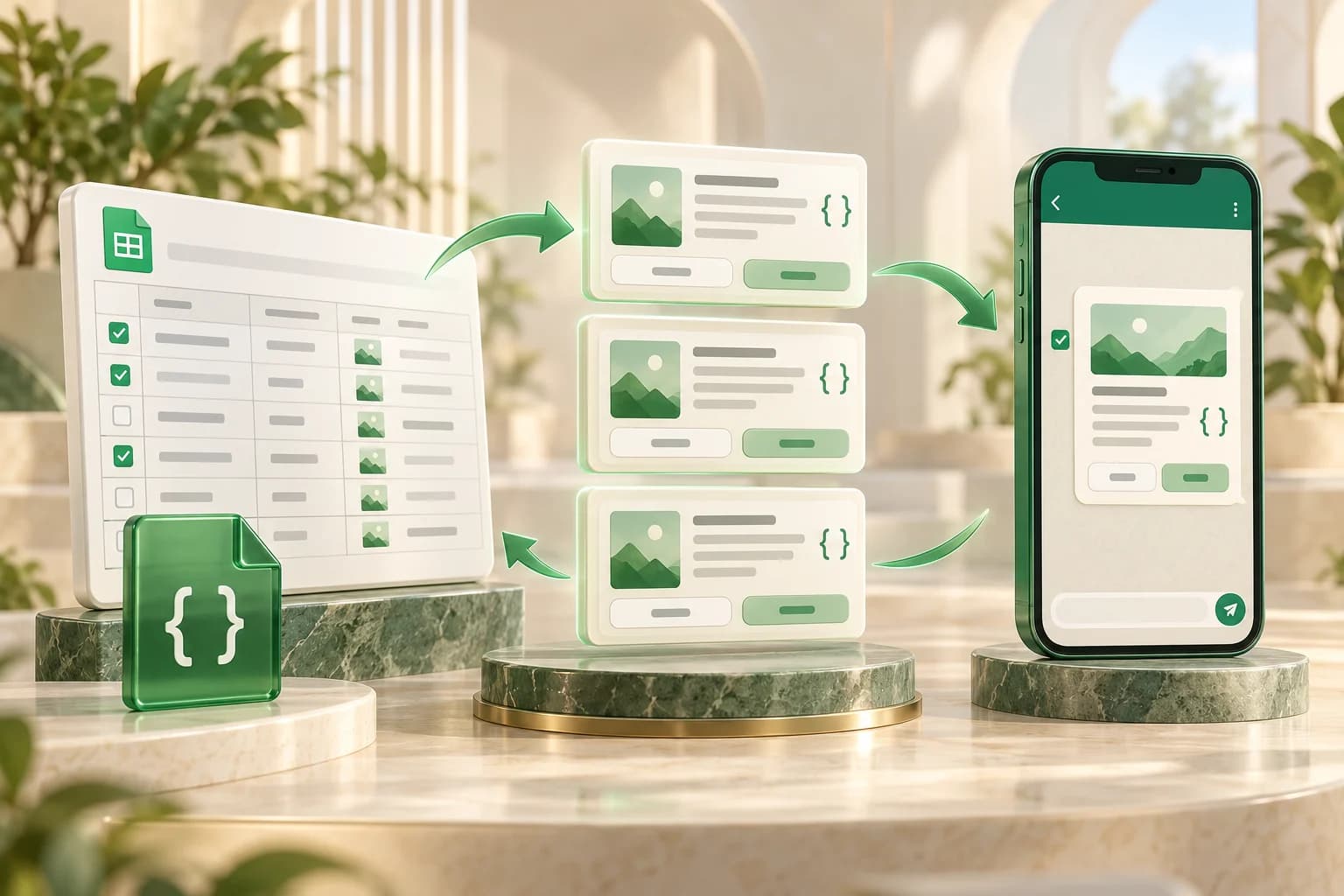
Create WhatsApp Message Templates in Bulk
Prepare a whole set of WhatsApp message templates without rebuilding each one from scratch. WACM lets your team create templates in an Excel workbook, import existing templates from JSON, and export reusable template definitions for another WACM account. Keep order updates, appointment reminders and campaign messages organized as your business grows.
Every import starts with a preview. Review message content with sample values, choose the templates you need, and optionally rename individual templates or add a suffix to a selected group. Nothing is submitted for approval until you choose to import your selection.
Excel Bulk Creation and JSON Import
Download the Excel sample and add one template per row. Enter the template name, category, language, body, variable samples, text header, footer and buttons. Advanced component JSON lets you define more complex templates, including media headers and authentication configurations. You can also upload a single template JSON object or a bundle exported from WACM.
- Bulk creation from Excel: Prepare up to 200 templates in one XLSX workbook using the supplied column format.
- Single and bulk JSON import: Reuse one message template or bring in a complete collection.
- Preview before importing: Read the message with sample values and check its header, footer and buttons.
- Optional renaming: Give a template a new name or add a shared suffix to selected templates.
Export Templates and Reuse Them Across Accounts
Download a single template as JSON, export selected templates as JSON or Excel, or export an account's template collection as JSON. Each transfer supports up to 200 templates. JSON preserves the nested component structure, including dynamic variables, sample values, headers, footers and button configuration.
This is useful when setting up a separate brand account, standardizing message templates across branches, or giving a new team a reusable starting point. Exports contain template definitions; account credentials, campaign history, analytics and approval status are not transferred.
Media Headers with a Guided Upload Experience
Image, video and PDF headers are part of the template configuration. In the destination account, add the media file through a dedicated upload panel. See accepted file types and size limits, drag and drop a file, follow upload progress, and preview the selected media. Retry a failed upload or replace and remove a file before importing.
The review screen highlights templates that still need media and lets you filter them. Required-media templates become selectable after their upload completes. Media files are uploaded separately rather than embedded in the JSON or Excel export. Flow buttons also require a published Meta WhatsApp Flow in the destination account.
A Review Process Your Team Can Follow
- Choose your file: Upload a JSON export or the completed Excel sample. Import files can contain up to 200 templates and be up to 5 MB.
- Review and customize: Check names, categories, languages, variables and buttons. Attach required media and choose destination Flows.
- Select your templates: Import only the rows you need. Existing name-and-language combinations are protected from overwriting.
- Submit and track results: Submit selected templates for Meta approval, review each result, and download a results report. You can also save unsubmitted selections as JSON.
Imports are processed one template at a time. Stop after the current request if you need to pause the remaining submissions. Imported templates need approval in the destination account; an approval from the source account does not carry over.
Build a Reusable Template Workflow
Start with the WhatsApp template examples, prepare your Excel workbook, and review the import with your team. Once templates are approved, use them in WhatsApp campaigns and automated reminders. Read the template import and export guide for the setup steps.
Ready to Use This Feature?
Our experts are here to show you how Bulk Template Creation & Import/Export can transform your business communication.
Request a Consultation