
Meta WhatsApp Flows & Interactive Forms
Create multi-screen forms inside WhatsApp with text fields, choices and date pickers. Build, preview and publish Flows from your WACM workspace.
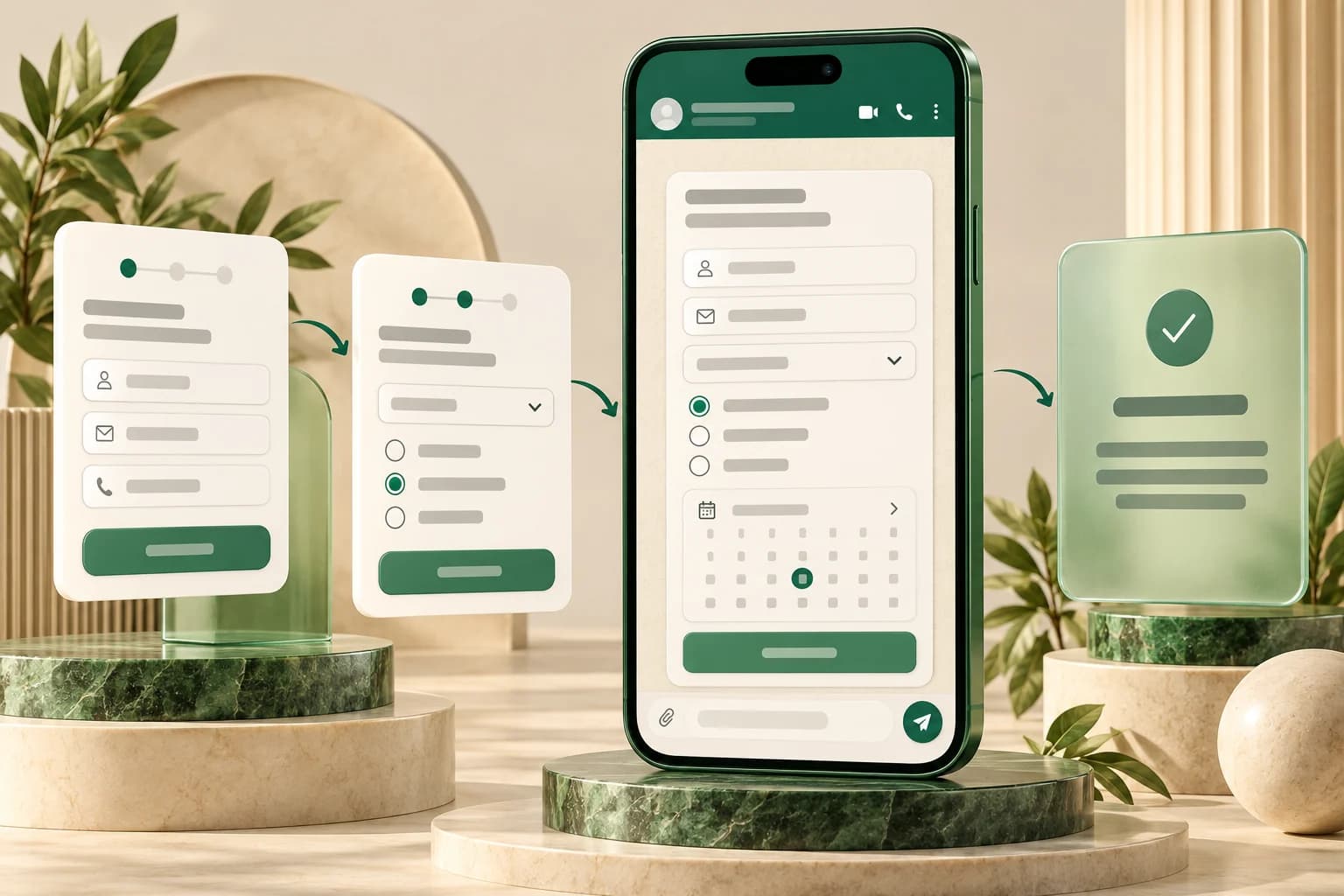
Collect Structured Information Inside WhatsApp
Give customers a clear form to complete as part of a WhatsApp conversation. Meta WhatsApp Flows let you guide people through multiple screens with text fields, selectable options and dates, helping your team collect consistent information instead of asking a long series of separate questions.
WACM brings Flow creation, visual editing, JSON upload, preview and publication into one workspace. Prepare a lead enquiry, appointment request, support intake or feedback survey, then choose the form's opening screen and message when sending it to a contact.
Build Forms with Screens and Components
Create a Flow with a name and category, then open the form builder. Add screens, organize fields inside forms, and configure the next step or final screen. Use headings and helper text to explain what the customer should provide.
- Text and phone fields: Collect written answers and contact details with configured labels and required fields.
- Dropdowns and choices: Use dropdowns, radio buttons and checkbox groups for structured selections.
- Date selection: Add a date picker for a requested appointment or other date-based information.
- Multi-screen navigation: Guide customers between screens and finish with a terminal screen.
- Consent and context: Include explanatory text, images, links and opt-in components where appropriate.
A form captures the details your workflow asks for. Confirming an appointment, checking live availability or updating another business system requires the corresponding business logic and integration.
Visual Editing or Flow JSON Upload
Use the visual builder for form composition, or upload a Flow JSON file prepared by your developer. WACM checks the basic screen structure and the builder checks issues such as missing screen identifiers, invalid navigation targets and a missing final screen.
Save and upload the definition to the connected Meta account, then review any validation errors shown on the Flow details page. Advanced data exchange can use a configured endpoint; its business logic and account configuration need to be tested separately from the screen layout.
Preview Before Publishing
Check the screen layout in the builder and refresh the Meta preview link to review the customer experience. Test the field labels, choices, required inputs and screen navigation before publishing. WACM displays the Flow's status and available validation feedback so your team can see what still needs attention.
Publication is presented as an irreversible action in the app. Finalize and test the form first, then publish when it is ready. You can also sync Flows from Meta and deprecate a Flow when it should no longer be used.
Send the Right Form with a Clear Call to Action
Choose a contact, supply the message body, and configure optional header and footer text. Set the button label and opening screen, select draft or published mode for the intended test or customer journey, and include a Flow token or initial JSON data when your integration needs it.
Published Flows can also be selected for supported Flow buttons in the template import workflow. When transferring template definitions between accounts, choose a published Flow that belongs to the destination account rather than reusing the original account's Flow identifier. Delivery still depends on the connected account, message type and applicable WhatsApp messaging requirements.
Useful Forms for Everyday Customer Conversations
- Lead enquiries: Ask about the product, service or location a customer is interested in.
- Appointment requests: Collect the preferred date and relevant contact details for follow-up.
- Support intake: Gather the issue category and description before your team responds.
- Feedback surveys: Offer consistent answer choices and space for comments.
Meta WhatsApp Flows provide the customer-facing form screens. WACM's AI Flow Builder manages conversation automation and business actions. Your configured workflow determines how form data is processed and what happens next; creating a form does not automatically create a reservation, order or CRM update.
Read the WhatsApp Flows setup guide, review your WhatsApp account setup, or book a demo to plan the screens and follow-up your team needs.
Get started with Meta WhatsApp Flows & Interactive Forms
- Connect your WhatsApp account. Complete the WhatsApp Business account setup in WACM. Open Chat Automations, then WhatsApp Flows, and create a Flow with its name and category.
- Build the form screens. Open the visual builder or upload Flow JSON. Add fields inside form containers, configure screen navigation and mark the final screen as terminal. Configure an endpoint if your design needs data exchange.
- Validate and preview. Run the builder validation, save and upload the JSON, review Meta validation feedback, and refresh the preview link. Test required fields, choices, navigation and any connected business logic.
- Publish and test sending. Finalize the form before the irreversible publish action. Select a contact, message, button label and opening screen for sending. Use a published destination Flow when adding it to an imported template's Flow button.
Frequently asked questions
What are Meta WhatsApp Flows?
They are interactive, screen-based experiences inside WhatsApp. In WACM, you can create forms with fields, choices and navigation, preview them, publish them to your connected Meta account and send them to contacts.
How are WhatsApp Flows different from the AI Flow Builder?
WhatsApp Flows provide customer-facing form screens inside WhatsApp. WACM's AI Flow Builder manages conversation automation, conditions and business actions. What happens after a form is completed depends on the workflow and integration you configure.
Which form fields can I use?
The visual builder includes text and phone inputs, text areas, dropdowns, radio buttons, checkbox groups and date pickers, plus layout and opt-in components. Review validation feedback for the Flow JSON you upload to Meta.
Can I upload an existing WhatsApp Flow JSON file?
Yes. WACM supports Flow JSON upload as well as visual editing. The definition needs the required version and screen structure. Review builder checks and Meta validation feedback before publishing.
Can I preview a form before publishing?
Yes. Review the builder's screen preview and refresh the Meta preview link from the Flow details page. Test labels, required inputs, choices and navigation before the publish action.
Can a WhatsApp form automatically confirm a booking or update my CRM?
A form can collect appointment preferences or customer details. Confirming availability, creating a booking or updating a CRM requires the matching business logic and integration; form creation alone does not perform those actions.
Can I use a published Flow in a template imported from another account?
Yes, for supported Flow buttons. Select a published Flow in the destination account during template review. The original account's Flow identifier should not be reused as the destination Flow.
Can I manage existing Flows from my Meta account?
WACM supports syncing Flows from Meta, viewing status and validation feedback, refreshing previews, publishing drafts and deprecating Flows. Review and test the definition before publishing, which the app presents as irreversible.
Need help setting this up?
Our team can help you plan the right WACM workflow.